01 / Before the take
Find your level.
Use the built-in mic or a connected wired audio input. Choose a mono input or stereo pair on supported interfaces, and check live levels before you record.
A pocket notebook for sound
A riff. A rehearsal. The rain outside.
Record, mark, transcribe. Find your way back to the good part.

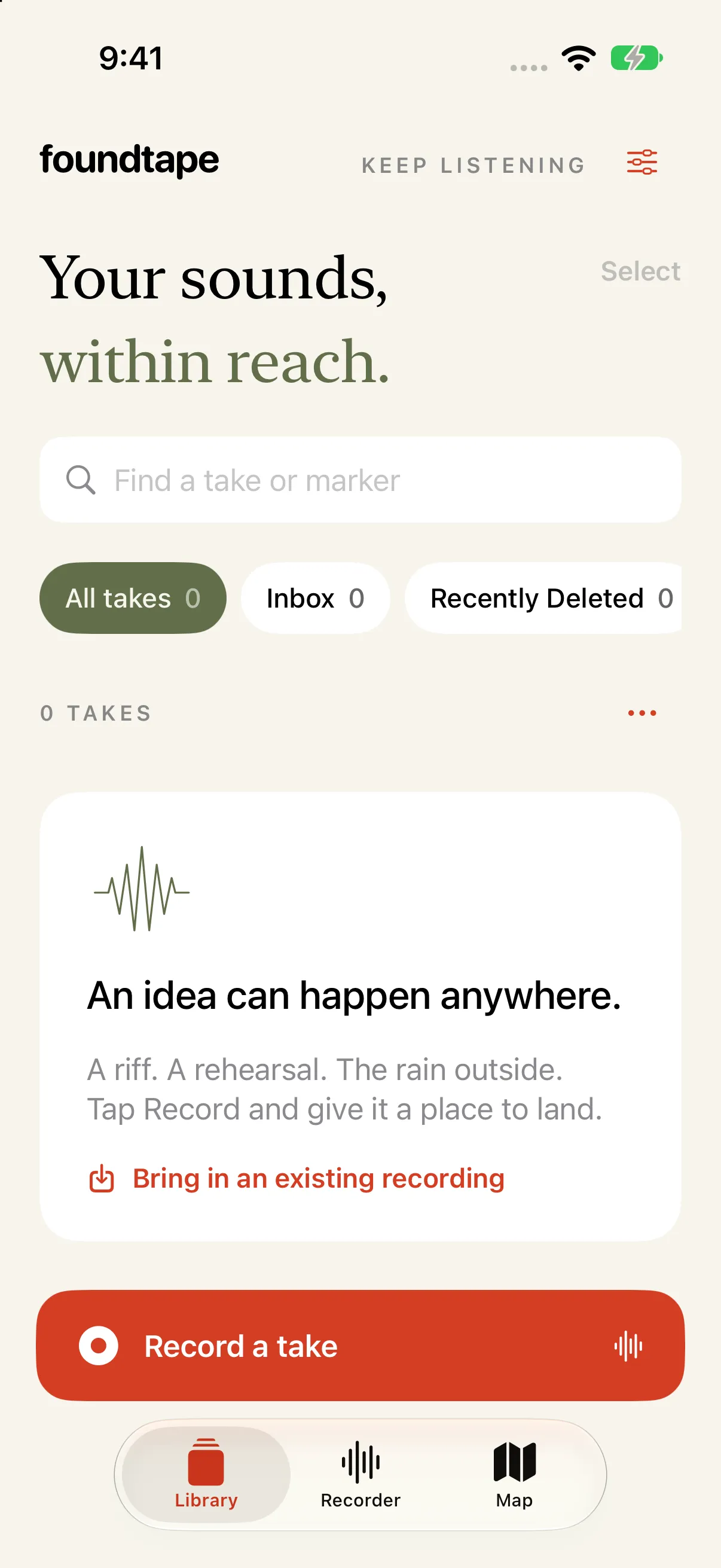
A new idea doesn’t wait. Give it a place to land with one tap.
The chorus. A good mistake. Leave a marker and keep recording.
Keep your takes in collections. Find the one you’re looking for.
Less setup. More listening.
The melody on the walk home. The first run-through.
The room before everyone arrives. Keep a little of it.
Sunday rehearsal
Product capture pending
01 Record & remember
Stay with the sound. Drop a marker while you record, then give it a name when you have a moment.
When you listen back, tap a marker to go straight to the phrase, the change, or the part you want to try again.
02 Collect & rediscover
A home for half-finished ideas and things worth returning to. Bring in existing audio, group takes into collections, and search by title or marker.
Rehearsal notes 01:24
“Let’s try that
first verse again.
Keep the quiet part.
Then bring it back.”
Illustrated transcript example
03 Listen & follow along
Turn speech into a transcript on your iPhone, whenever you choose. Search a word or phrase, play from a match, or save it as a named marker.
Follow the words as the audio plays and tap a timed word to jump back in. Copy the transcript when you want to take the thought somewhere else.
Available languages and word timings depend on your device and speech recognition support.
From the first level check to the next listen
01 / Before the take
Use the built-in mic or a connected wired audio input. Choose a mono input or stereo pair on supported interfaces, and check live levels before you record.
02 / A little closer
Home Screen and Lock Screen widgets put Record within reach. Unlock to start a new take; use Live Activity controls to mark a moment or stop and save. Shortcuts works too.
03 / Room to return
Choose optional iCloud sync for recordings, collections, markers and transcripts. Downloaded originals stay available offline. Audio transfers use Wi-Fi by default. iCloud sync is currently in beta.
04 / Let it travel
Export WAV or 320 kbps MP3, one take or several at once. Mono stays mono; stereo stays stereo. Your original stays unchanged, and exports include no coordinates or transcripts.
A few practical things
Yes. Record, organise and play locally stored audio without a connection. With optional iCloud sync, downloaded originals remain on your iPhone for offline use. No separate foundtape account is required.
Open a saved take, choose the spoken language and start transcription yourself. Speech recognition runs on your iPhone, with no server fallback. Language and device support vary; you’ll be asked before downloading any needed language files. Keep foundtape open while it works. Music, singing and overlapping voices may not transcribe accurately.
You can choose to save a single location when a take starts. There’s no route tracking. When a place name is available, it becomes the new take’s title; otherwise the date is used. You can rename the take or remove its saved location at any time. Exported audio has no coordinates, but its filename uses the take’s title.
Yes. Import multiple audio files from Files, or share audio from Voice Memos and other apps into foundtape. Supplied titles and recording dates are preserved when available. Duplicate audio is recognised, and you can manually set a missing recording date.
It moves to Recently Deleted, where you can restore it. It stays there until you choose to erase it permanently.
 Keep listening.
Keep your library on your iPhone, with optional iCloud sync.
Just you, a little curiosity, and the record button.